
f you’ve ever worked in Excel and thought, “Yaar, kaash Excel khud decision le leta…” — that’s exactly what the IF function does.
Learning How to use IF function in Excel is like unlocking a superpower. It allows your spreadsheet to think, evaluate conditions, and return results automatically. Whether you’re grading students, analyzing sales, or building dashboards—IF is everywhere.
In this guide, I’ll break it down step-by-step, with practical examples and pro-level tricks that most tutorials skip.
What Is the IF Function in Excel?
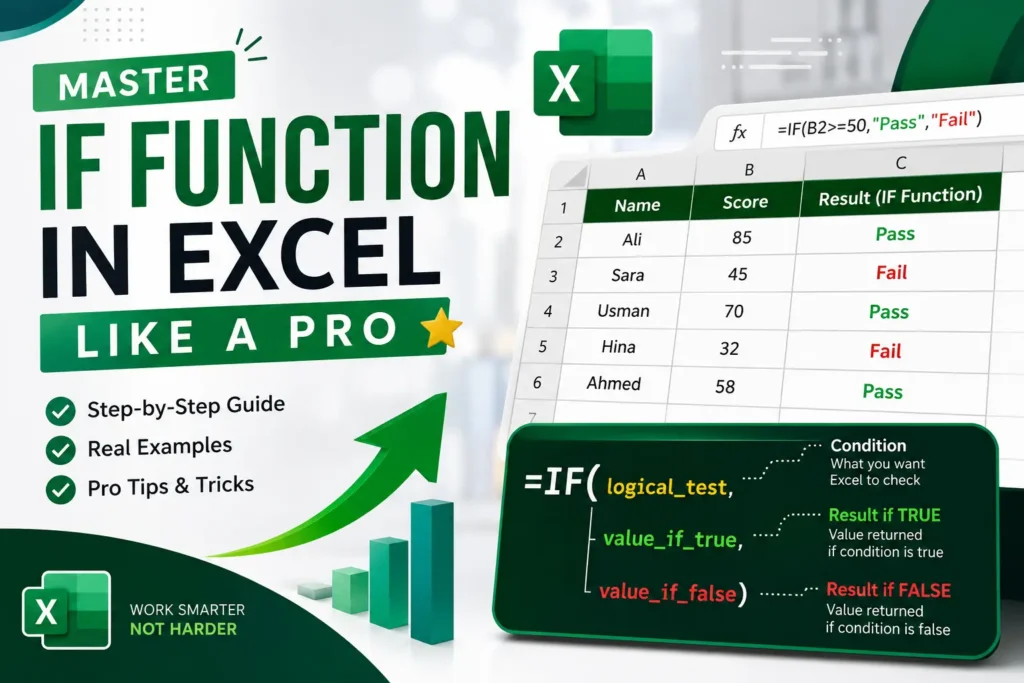
At its core, the IF function performs a logical test and returns one value if TRUE and another if FALSE.
Basic Syntax:
=IF(logical_test, value_if_true, value_if_false)Simple Example:
=IF(A1>50, "Pass", "Fail")👉 If A1 is greater than 50 → “Pass”
👉 Otherwise → “Fail”
Why You Must Master IF Function (Real-Life Use Cases)
Here’s where things get interesting. IF isn’t just a formula—it’s decision-making logic.
Common Use Cases:
- ✅ Student grading systems
- ✅ Sales bonus calculations
- ✅ Attendance tracking
- ✅ Data validation
- ✅ Financial analysis
Pro Insight: Most Excel automation starts with IF. If you skip this, advanced formulas will always feel confusing.
Step-by-Step: How to Use IF Function in Excel
Let’s build your first IF formula properly.
Step 1: Select a Cell
Click where you want the result.
Step 2: Type =IF(
Start your formula.
Step 3: Add Logical Test
Example:
A1>70Step 4: Define TRUE Result
"Good"Step 5: Define FALSE Result
"Needs Improvement"Final Formula:
=IF(A1>70,"Good","Needs Improvement")Advanced IF Examples (Level Up Your Skills)
1. IF with Numbers


4
=IF(B1>=50000,"Bonus","No Bonus")2. IF with Text
=IF(A1="Yes","Approved","Rejected")⚠️ Text must be in quotes.
3. Nested IF (Multiple Conditions)
=IF(A1>=80,"A",IF(A1>=60,"B","C"))👉 This checks multiple conditions step-by-step.
Pro Tip: Don’t overuse nested IF—can get messy fast.
4. IF with AND Function
=IF(AND(A1>50,B1>50),"Pass","Fail")👉 Both conditions must be TRUE.
5. IF with OR Function
=IF(OR(A1>50,B1>50),"Pass","Fail")👉 Only one condition needs to be TRUE.
Comparison Table: IF vs Nested IF vs AND/OR
| Feature | IF Function | Nested IF | IF + AND/OR |
|---|---|---|---|
| Complexity | Easy | Medium | Medium |
| Conditions | One | Multiple | Multiple |
| Readability | High | Low | Medium |
| Best Use Case | Simple logic | Grading systems | Multi-condition checks |
Common Mistakes (Avoid These!)
❌ Missing Quotes
Wrong:
=IF(A1=Yes,Approved,Rejected)Correct:
=IF(A1="Yes","Approved","Rejected")❌ Too Many Nested IFs
👉 Makes formulas unreadable.
❌ Wrong Logical Operators
Use:
>greater than<less than=equal
Pro Tips to Use IF Like an Expert
🔥 Tip 1: Use IFERROR with IF
=IFERROR(IF(A1/B1>1,"Profit","Loss"),"Error")🔥 Tip 2: Replace Nested IF with IFS (Modern Excel)
=IFS(A1>80,"A",A1>60,"B",TRUE,"C")🔥 Tip 3: Combine with Conditional Formatting
👉 Makes your data visually powerful.
🔥 Tip 4: Keep Formulas Clean
Break complex formulas into helper columns.
Key Insights (What Most People Don’t Tell You)
- IF is not just a formula—it’s the foundation of Excel logic
- Most advanced tools (Pivot Tables, Dashboards) rely on it indirectly
- Mastering IF = Faster freelancing work + better projects
- Clean logic always beats complex formulas
Conclusion: Start Practicing Today
Now you truly understand How to use IF function in Excel—from basics to pro-level tricks.
But here’s the real truth:
👉 You don’t master IF by reading…
👉 You master it by using it daily
Start with simple conditions, then move to nested formulas, then combine with AND/OR.