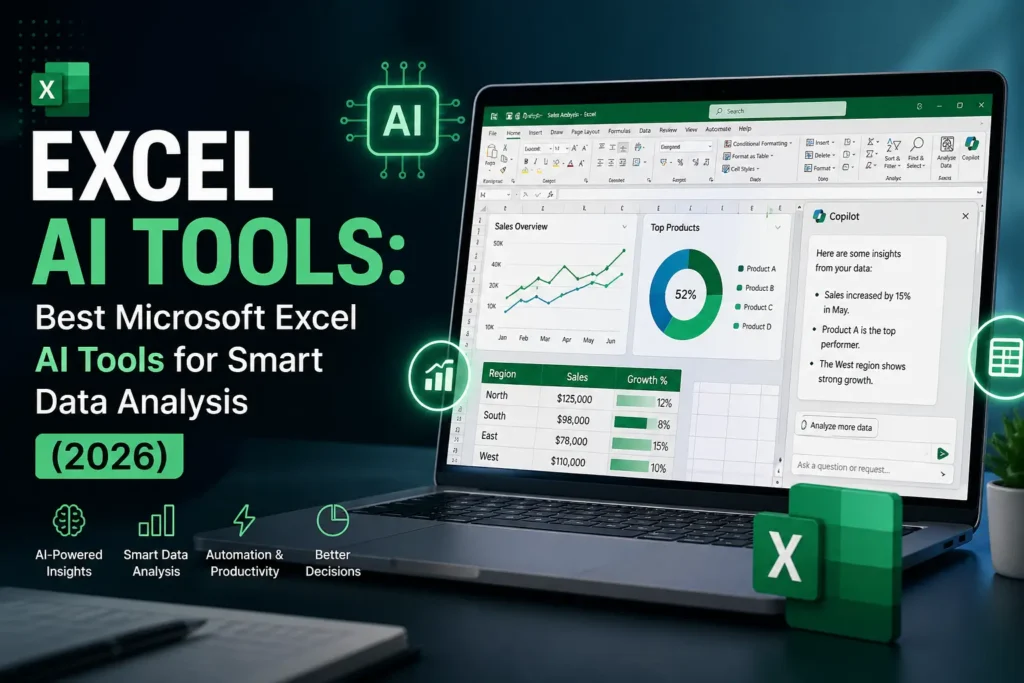

If you’ve ever spent hours cleaning messy spreadsheets or building formulas from scratch, you already know how powerful—but time-consuming—Excel can be. That’s exactly where Excel AI Tools come in.
With the integration of artificial intelligence into Microsoft Excel, data analysis is no longer just about formulas—it’s about automation, prediction, and smart insights. In 2026, Excel has evolved into a semi-autonomous data assistant that can analyze trends, suggest formulas, and even generate reports.
The real question is: Which Excel AI tools are actually worth using?
This guide breaks down the best tools, compares them, and gives you practical insights so you can work smarter—not harder.
The Rise of AI in Excel


6
AI in Excel isn’t just a feature—it’s a shift in how we interact with data.
Instead of:
- Writing complex formulas
- Manually creating charts
- Guessing trends
You can now:
- Ask questions in natural language
- Get automated insights
- Predict future outcomes instantly
This transformation is largely driven by tools like Copilot and advanced integrations with machine learning systems.
Best Excel AI Tools in 2026 (Comparison)
Here’s a quick comparison of the most powerful Excel AI tools right now:
| Tool | Best For | Key Feature | Skill Level |
|---|---|---|---|
| Excel Copilot | All-in-one AI assistant | Natural language queries | Beginner |
| Analyze Data | Quick insights | Auto-generated charts & summaries | Beginner |
| Power Query AI | Data cleaning | Automated transformations | Intermediate |
| Power Pivot + AI | Large datasets | Advanced modeling | Advanced |
| Python in Excel | Data science | AI & ML models | Advanced |
| Power BI Integration | Visualization | Interactive dashboards | Intermediate |
1. Excel Copilot: Your AI Data Assistant


8
The biggest upgrade to Excel in recent years is Copilot, powered by AI models integrated into Microsoft 365.
With Copilot, you can simply type:
“Analyze sales trends for the last 6 months”
And Excel will:
- Generate charts
- Highlight trends
- Suggest insights
Why It Stands Out:
- No need to remember formulas
- Works like ChatGPT inside Excel
- Saves massive time
My Take:
If you’re a beginner or even intermediate user, Copilot is the fastest way to become productive in Excel.
2. Analyze Data: Instant Insights Without Effort


6
Previously known as “Ideas,” the Analyze Data feature automatically scans your dataset and suggests:
- Trends
- Patterns
- Pivot tables
- Visualizations
Key Benefits:
- One-click insights
- Great for quick reports
- No technical skills required
Limitation:
It works best with clean and structured data.
3. Power Query with AI: Smart Data Cleaning


7
Data cleaning is usually the most frustrating part of analysis. That’s where Power Query shines.
With AI enhancements, it can:
- Detect patterns in messy data
- Suggest transformations
- Automate repetitive cleaning steps
Example:
Instead of manually fixing columns, Power Query can:
- Split names automatically
- Remove duplicates
- Standardize formats
Pro Insight:
If you deal with raw or imported data, this tool is essential.
4. Power Pivot: Advanced Data Modeling with AI
For large datasets, regular Excel formulas fall short. That’s where Power Pivot comes in.
It allows you to:
- Handle millions of rows
- Build relationships between tables
- Create advanced calculations (DAX formulas)
AI Advantage:
- Suggests relationships
- Improves data modeling efficiency
Who Should Use It:
- Finance professionals
- Analysts working with big data
5. Python in Excel: The Future of AI Analysis


7
One of the most exciting features in 2026 is Python integration inside Excel.
This allows you to:
- Run machine learning models
- Use libraries like pandas and matplotlib
- Perform advanced statistical analysis
Why It’s Powerful:
You get the best of both worlds:
- Excel interface
- Python’s AI capabilities
My Experience:
If you’re serious about data science, this is a game-changer. But it does require learning Python.
6. Power BI Integration: AI-Powered Dashboards


6
When Excel isn’t enough for visualization, integration with Microsoft Power BI takes things to the next level.
Features:
- Interactive dashboards
- Real-time updates
- AI-driven forecasting
Best Use Case:
- Business reporting
- Client presentations
- Executive dashboards
Key Insights: What Actually Matters
After using these tools, here are some practical insights:
1. AI Saves Time, Not Skill
AI won’t replace your understanding—it amplifies it.
2. Start Simple
Use:
- Copilot
- Analyze Data
Before moving to advanced tools.
3. Data Quality Still Matters
Even the best AI tools fail with bad data.
4. Combine Tools for Maximum Power
The real magic happens when you combine:
- Power Query (cleaning)
- Copilot (analysis)
- Power BI (visualization)
When Should You Use Excel AI Tools?
Use them when:
- You want faster insights
- You’re dealing with large datasets
- You need automation
Avoid relying fully on AI when:
- Data is sensitive or critical
- You need 100% accuracy without verification