
Introduction: Work Smarter, Not Harder with Excel Tricks
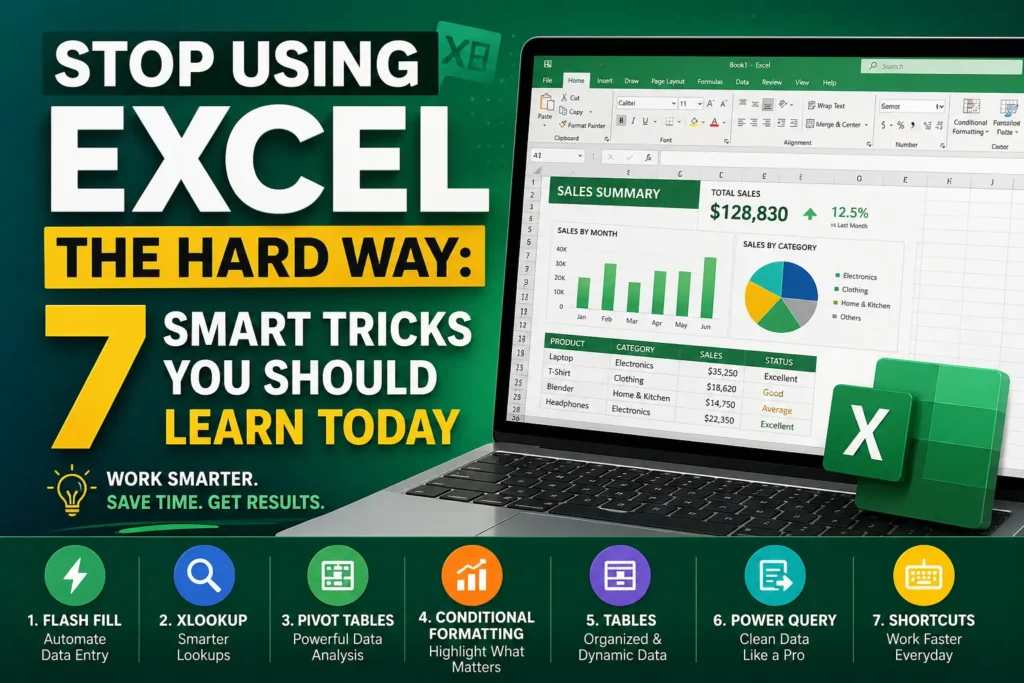
If you’ve ever spent hours manually fixing spreadsheets, dragging formulas endlessly, or hunting for errors, you’re not alone. Most people use Microsoft Excel the hard way—repeating tasks that could be automated in seconds using Excel Tricks.
The truth? A few smart excel tricks can completely transform how you work.
I used to manually clean data, copy formulas row by row, and double-check everything like a human calculator. It wasn’t just slow—it was exhausting. Once I discovered a handful of powerful features, my workflow changed overnight.
This guide isn’t about overwhelming you with 100 shortcuts. Instead, you’ll learn 7 practical, high-impact tricks that actually make a difference—whether you’re a student, freelancer, or office worker.
Why Most People Use Excel the Hard Way
Before jumping into tricks, let’s understand the problem.
| Hard Way ❌ | Smart Way ✅ |
|---|---|
| Manual calculations | Automated formulas |
| Copy-paste repetition | Dynamic functions |
| Sorting by hand | Built-in tools |
| Static data | Smart tables |
The difference isn’t skill—it’s awareness.
1. Flash Fill: Let Excel Do the Typing for You


5
Ever had to split names, format emails, or extract data manually?
Flash Fill does it instantly.
How it works:
- Type one example of what you want
- Press Ctrl + E
- Excel fills the rest automatically
Example:
- Convert:
Ali Khan→Ali - Excel detects the pattern and applies it to all rows
👉 According to Microsoft documentation, Flash Fill uses pattern recognition—no formulas needed.
Why it matters:
This single feature can save hours of repetitive typing.
2. XLOOKUP: The Modern Replacement for VLOOKUP


8
If you’re still using VLOOKUP, you’re making life harder.
Meet XLOOKUP—simpler, more powerful, and less error-prone.
Key advantages:
- Works left AND right
- No column number confusion
- Handles missing values gracefully
Simple example:
=XLOOKUP(A2, A:A, B:B, "Not Found")👉 Learn more from Microsoft Support.
Real insight:
Once I switched to XLOOKUP, I stopped debugging broken formulas every day.
3. Pivot Tables: Turn Raw Data into Insights


6
Think of Pivot Tables as your personal data analyst.
What they can do:
- Summarize thousands of rows instantly
- Create reports without formulas
- Analyze trends in seconds
Example use case:
- Total sales by month
- Top-performing employees
- Category-wise analysis
👉 Widely recommended by experts at Harvard Business Review for data-driven decision making.
Pro tip:
Use Pivot Tables when your data starts getting messy—don’t wait.
4. Conditional Formatting: Highlight What Matters


6
Stop scanning spreadsheets manually.
Let Excel highlight important data automatically.
Use it to:
- Find duplicates
- Highlight top values
- Show trends with color scales
Example:
- Red for low sales
- Green for high performance
👉 Backed by productivity insights from Forbes on visual data clarity.
Why it matters:
Your brain processes visuals faster than numbers.
5. Tables: The Most Underrated Excel Feature


Most users ignore Excel Tables—but they’re a game-changer.
Convert data into a table:
Press Ctrl + T
Benefits:
- Automatic formatting
- Dynamic formulas
- Auto-expanding ranges
- Structured references
Example:
Instead of:
=A2+A3+A4Use:
=SUM(Table[Sales])👉 Recommended in official guides from Microsoft Excel Team.
Real experience:
Once I started using tables, my formulas became cleaner—and errors dropped dramatically.
6. Power Query: Clean Data Like a Pro


6
If you deal with messy data, Power Query is your best friend.
What it does:
- Cleans data automatically
- Removes duplicates
- Merges files
- Transforms data in one click
Key advantage:
You only clean data once—Excel remembers the steps.
👉 Learn more from Microsoft Learn.
Insight:
This is where Excel starts feeling like a real data tool—not just a spreadsheet.
7. Keyboard Shortcuts: Speed Up Everything


5
Mouse users work harder. Keyboard users work smarter.
Must-know shortcuts:
| Shortcut | Function |
|---|---|
| Ctrl + C / V | Copy / Paste |
| Ctrl + T | Create table |
| Ctrl + Arrow | Jump across data |
| Ctrl + Shift + L | Apply filters |
| Alt + = | AutoSum |
👉 Productivity experts at McKinsey & Company emphasize keyboard efficiency in digital workflows.
Reality check:
Learning just 5 shortcuts can save hours every week.
Key Insights: Hard Way vs Smart Way
| Task | Hard Way | Smart Excel Trick |
|---|---|---|
| Data entry | Manual typing | Flash Fill |
| Lookup values | VLOOKUP errors | XLOOKUP |
| Data analysis | Manual sorting | Pivot Tables |
| Finding trends | Scanning | Conditional Formatting |
| Managing data | Static ranges | Tables |
| Cleaning data | Repetition | Power Query |
| Navigation | Mouse | Shortcuts |
Final Thoughts: Excel Isn’t Hard—Your Approach Is
Here’s the truth: Excel itself isn’t complicated.
What makes it difficult is using outdated methods.
Once you start applying these excel tricks, everything changes:
- Tasks become faster
- Errors decrease
- Confidence increases
You stop working in Excel—and start working with Excel.
Call to Action 🚀
Now it’s your turn.
👉 Pick just ONE trick from this list and apply it today.
👉 Notice how much time you save.
👉 Then come back and learn the next one.
If you found this helpful:
- Share it with a friend who struggles with Excel
- Bookmark it for later
- Or explore more advanced guides to level up even further
Want more practical tips like this? Stay tuned—because smarter work starts with smarter tools.