
Introduction
Data entry may look simple, but anyone who works in Microsoft Excel daily knows how frustrating small mistakes can become. One wrong number, an accidental space, or a duplicated entry can destroy reports, formulas, and calculations.
I learned this the hard way while managing student records in Excel. A single typing mistake changed a student’s total marks, and finding that error later took almost an hour. Since then, I started using smarter Excel techniques that dramatically improved my accuracy and speed.
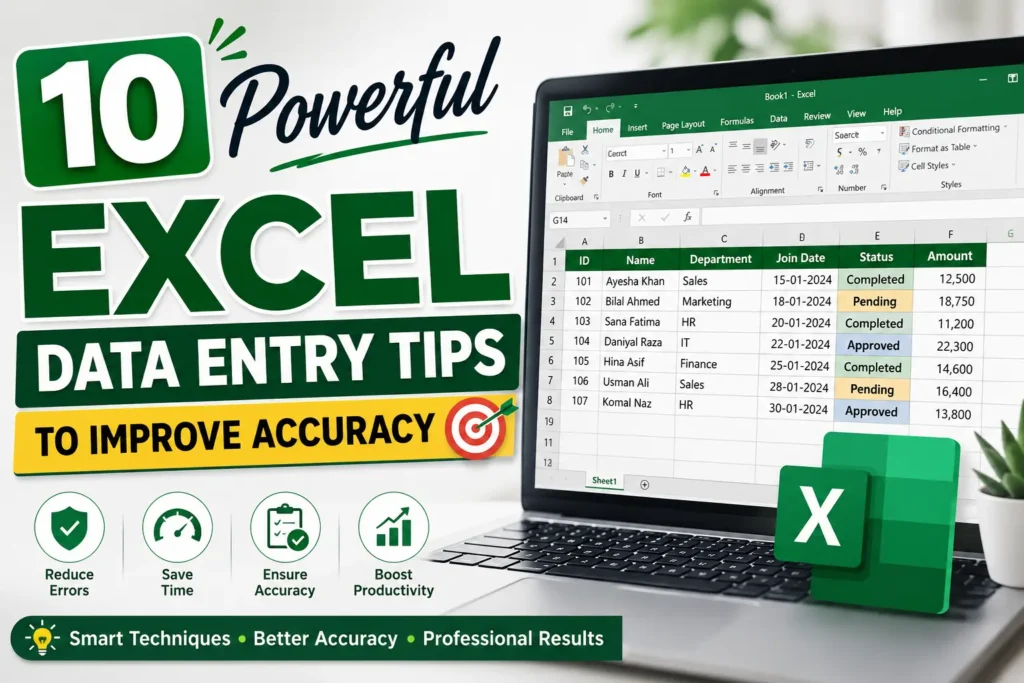
In this guide, you’ll learn practical and beginner-friendly Excel Data Entry Tips that professionals use to avoid mistakes and work faster. These are not complicated tricks — they are real methods you can start using immediately.
Why Accurate Data Entry Matters in Excel
Before jumping into the tips, it’s important to understand why accuracy matters.
Incorrect data can lead to:
- Wrong calculations
- Bad business decisions
- Duplicate records
- Reporting errors
- Wasted time fixing mistakes
According to Microsoft Excel Support, using validation tools and structured spreadsheets significantly reduces user errors.
1. Use Data Validation to Prevent Wrong Entries
One of the best Excel Data Entry Tips is using Data Validation.
This feature restricts what users can type into a cell.
For example:
- Allow only numbers
- Limit dates
- Create dropdown menus
- Prevent duplicate values
How to Use Data Validation
- Select your cells
- Go to Data
- Click Data Validation
- Choose your rules
Example:
If you only want values between 1 and 100, Excel will block invalid numbers automatically.


7
Why It Helps
This method reduces typing mistakes before they happen.
2. Create Dropdown Lists for Consistency
Typing the same words repeatedly increases errors.
Imagine entering:
- Pending
- Completed
- Approved
A single typo like “Compeleted” creates inconsistent data.
Dropdown lists solve this problem.
Best Use Cases
- Employee departments
- Product categories
- Attendance status
- Payment methods
Quick Steps
- Create a list somewhere in the sheet
- Select target cells
- Open Data Validation
- Choose List
- Select your source range


6
This is one of the easiest ways to improve spreadsheet professionalism.
3. Freeze Headers to Avoid Entering Data in Wrong Columns
Large spreadsheets become confusing quickly.
When headers disappear during scrolling, users often type data into the wrong column.
Solution: Freeze Panes
Steps
- Click the row below your header
- Go to View
- Click Freeze Panes
Now your headings remain visible while scrolling.


6
Real Benefit
This small feature prevents major organizational mistakes.
4. Use Conditional Formatting to Highlight Errors
Conditional Formatting automatically highlights unusual values.
For example:
- Duplicate entries
- Missing values
- Negative numbers
- Incorrect dates
Example
You can make duplicate IDs appear red instantly.
Steps
- Select your data
- Go to Home
- Choose Conditional Formatting
- Select your rule


6
This saves hours of manual checking.
5. Learn Important Keyboard Shortcuts
Mouse-only workflows slow down data entry.
Professional Excel users rely heavily on shortcuts.
Most Useful Shortcuts
| Shortcut | Function |
|---|---|
| Ctrl + C | Copy |
| Ctrl + V | Paste |
| Ctrl + Arrow Keys | Move quickly |
| Ctrl + Z | Undo |
| Alt + = | AutoSum |
| Ctrl + D | Fill Down |
Using shortcuts improves speed and reduces repetitive clicking fatigue.


7
6. Keep Your Spreadsheet Clean and Structured
Messy spreadsheets create confusion.
A clean layout improves both readability and accuracy.
Best Practices
Use:
- Bold headers
- Consistent fonts
- Proper spacing
- Separate sections
Avoid:
- Random colors
- Empty rows
- Merged cells
- Inconsistent formatting
A professional structure helps users understand data instantly.
7. Protect Important Cells from Editing
Sometimes formulas get deleted accidentally.
You can protect important cells to avoid this issue.
How to Protect Cells
- Select editable cells
- Unlock them in Format Cells
- Protect the worksheet
Now users cannot modify sensitive formulas.


6
This is extremely useful for shared spreadsheets.
8. Use Flash Fill for Faster Data Entry
Flash Fill is one of Excel’s smartest tools.
It automatically detects patterns and fills data for you.
Example
If you separate:
- Bilal Saeed
Into:
- Bilal
- Saeed
Excel learns the pattern and fills remaining names automatically.
Steps
- Type the expected result once
- Press:
- Ctrl + E


6
This feature feels almost magical for beginners.
9. Double-Check Data with Filters
Filters make reviewing large datasets easier.
You can instantly:
- Find blanks
- Sort values
- Detect duplicates
- Check categories
Enable Filters
- Select headers
- Press:
- Ctrl + Shift + L
Now each column gets a dropdown filter.


6
This is one of the most underrated Excel Data Entry Tips.
10. Save Backup Versions Regularly
Even perfect data entry becomes useless if files get corrupted.
Always maintain backups.
Smart Backup Habits
- Save files frequently
- Use cloud storage
- Create version copies
- Enable AutoSave
Services like Microsoft OneDrive help prevent data loss.
Comparison Table: Manual vs Smart Data Entry
| Feature | Manual Entry | Smart Excel Techniques |
|---|---|---|
| Speed | Slow | Fast |
| Accuracy | Lower | Higher |
| Error Detection | Manual | Automatic |
| Consistency | Weak | Strong |
| Productivity | Average | Excellent |
Common Excel Data Entry Mistakes to Avoid
1. Ignoring Validation Rules
Without restrictions, incorrect entries become common.
2. Using Merged Cells
Merged cells break sorting and filtering.
3. Leaving Blank Rows
Blank rows interrupt data organization.
4. Not Reviewing Data
Always perform a final check.
5. Overusing Colors
Too many colors reduce readability.
Expert Insight: Small Improvements Create Huge Results
Many people think Excel mastery requires advanced formulas.
In reality, simple habits create the biggest improvements.
When I started using dropdown lists and validation tools together, my spreadsheet mistakes dropped dramatically. More importantly, my work became faster and easier to manage.
Accuracy in Excel is less about typing speed and more about building systems that prevent human error.
Helpful Resources for Learning Excel
You can improve further using these trusted resources:
Conclusion
Improving spreadsheet accuracy does not require advanced technical skills. By applying these practical Excel Data Entry Tips, you can reduce errors, save time, and work more confidently.
Start with simple changes like:
- Dropdown lists
- Data validation
- Conditional formatting
- Keyboard shortcuts
Then gradually build smarter workflows.
The best Excel users are not the fastest typists — they are the people who create systems that minimize mistakes.
Frequently Asked Questions (FAQs)
What is the best way to improve accuracy in Excel?
Using Data Validation and dropdown lists is one of the most effective methods.
Which Excel feature prevents wrong data entry?
Data Validation restricts incorrect inputs automatically.
How can beginners enter data faster in Excel?
Keyboard shortcuts, Flash Fill, and templates help beginners improve speed quickly.
Is Flash Fill available in all Excel versions?
Flash Fill is available in modern versions of Microsoft Excel including Excel 2013 and later.
Call to Action
Which of these Excel Data Entry Tips do you already use?
Share your favorite Excel productivity trick in the comments and help others improve their workflow too. Also, explore our other Excel tutorials to become faster and more accurate with spreadsheets every day.