
Excel is one of the most powerful tools for students, office workers, freelancers, accountants, and business owners. But many beginners spend too much time clicking menus with the mouse instead of using shortcuts.
That’s where Excel Alt Shortcut Keys become game changers.
I still remember when I first learned a few Alt shortcuts in Microsoft Excel. Simple shortcuts like pressing Alt + H + B for borders or Alt + E + S + V for paste values saved me hours every week. Once you start using them regularly, working without shortcuts feels slow and frustrating.
In this guide, you’ll learn the most useful Microsoft Excel Alt shortcut keys every beginner should know. These shortcuts are practical, easy to remember, and perfect for daily work.
Why Excel Alt Shortcut Keys Matter
Most Excel users only use copy and paste shortcuts. But Alt shortcuts unlock Excel’s hidden speed.
Benefits of using Alt keys:
- Faster workflow
- Less mouse movement
- Improved productivity
- Better accuracy
- Professional Excel skills
When you press the Alt key in Excel, shortcut letters appear on the Ribbon. These letters help you access commands instantly.


7
How Alt Shortcuts Work in Excel
Unlike normal shortcuts like Ctrl + C, Alt shortcuts follow a sequence.
For example:
- Press Alt
- Then press H
- Then press B
- Then press A
This applies All Borders to selected cells.
You don’t need to press all keys together. Simply press them one after another.
Most Useful Excel Alt Shortcut Keys
Below are the best Excel Alt shortcut keys beginners should start using immediately.
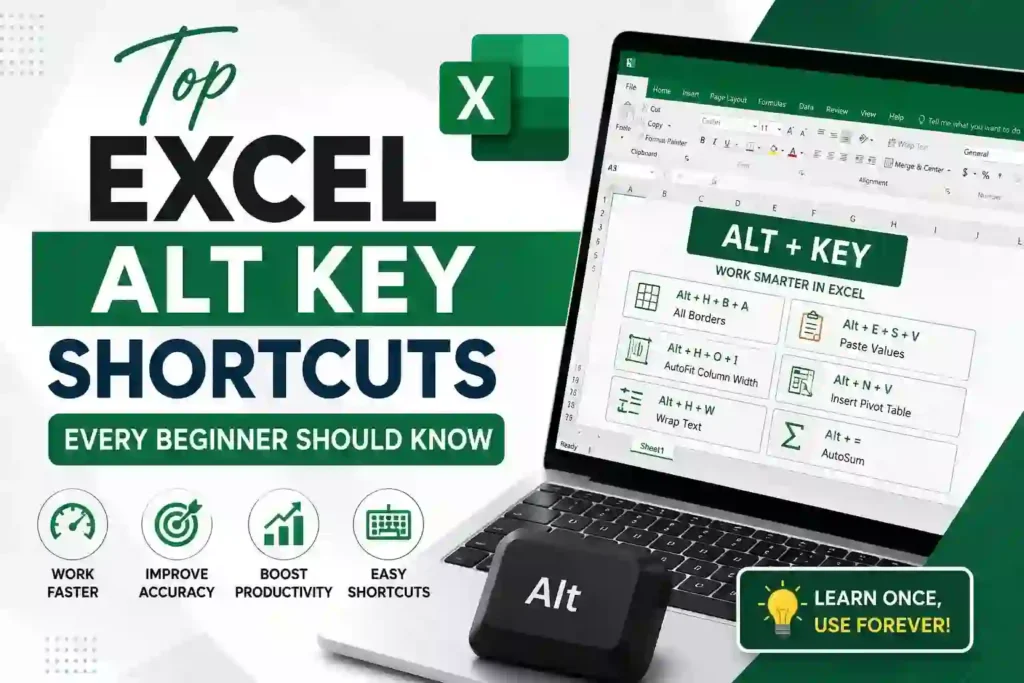
1. Alt + H + B + A — Apply All Borders
This shortcut quickly adds borders around selected cells.
Why it’s useful
Borders make tables look clean and professional.
Steps
- Select your data
- Press Alt
- Press H
- Press B
- Press A


5
2. Alt + H + O + I — AutoFit Column Width
One of the most useful shortcuts in Excel.
What it does
Automatically adjusts column width according to content.
Example
If text is hidden because columns are too small, this shortcut fixes it instantly.
Steps
- Select columns
- Press Alt + H + O + I


6
3. Alt + E + S + V — Paste Values
This classic shortcut is extremely important.
Why beginners love it
It removes formulas and pastes only values.
Perfect for:
- Reports
- Clean data sharing
- Removing linked formulas
Steps
- Copy cells
- Select destination
- Press Alt + E + S + V
- Hit Enter


6
4. Alt + H + W — Wrap Text
Sometimes text disappears because the column is narrow.
This shortcut:
Wraps long text into multiple lines inside the same cell.
Best used for:
- Headings
- Notes
- Descriptions


9
5. Alt + N + V — Insert Pivot Table
Pivot Tables help summarize large amounts of data quickly.
Example Uses
- Sales reports
- Student marks analysis
- Attendance summaries
Steps
- Select data
- Press Alt + N + V
- Create Pivot Table


5
Excel Alt Shortcut Keys Table
| Shortcut Key | Function | Best For |
|---|---|---|
| Alt + H + B + A | Apply Borders | Table Formatting |
| Alt + H + O + I | AutoFit Columns | Adjusting Width |
| Alt + E + S + V | Paste Values | Removing Formulas |
| Alt + H + W | Wrap Text | Long Content |
| Alt + N + V | Pivot Table | Data Analysis |
| Alt + H + FC | Font Color | Highlighting Data |
| Alt + H + H | Fill Color | Cell Formatting |
| Alt + H + M + C | Merge Cells | Titles & Headings |
| Alt + A + T | Filter Data | Sorting Information |
| Alt + = | AutoSum | Quick Calculations |
Best Alt Shortcuts for Formatting
Formatting is one of the most common Excel tasks.
These shortcuts save massive time daily.
Alt + H + H — Fill Color
Adds background color to cells.
Alt + H + FC — Font Color
Changes text color instantly.
Alt + H + M + C — Merge & Center
Perfect for creating report titles.


7
Best Alt Shortcuts for Data Analysis
Excel becomes truly powerful when working with data.
Alt + A + T — Apply Filters
Filters help find specific information instantly.
Example
You can quickly filter:
- Student names
- Product categories
- Monthly sales
Alt + = — AutoSum
Automatically adds selected numbers.
This shortcut alone can save beginners tons of time.


9
Common Mistakes Beginners Make
Many new Excel users struggle with shortcuts because of small mistakes.
1. Pressing All Keys Together
Alt shortcuts usually work in sequence, not simultaneously.
2. Using Laptop Function Lock
Some laptops require Fn key settings adjustment.
3. Not Practicing Daily
Shortcuts become powerful only with regular use.
Tips to Learn Excel Shortcuts Faster
Start Small
Learn 3 shortcuts first:
- Paste Values
- AutoFit
- Borders
Practice Daily
Use shortcuts in real work instead of memorizing blindly.
Keep a Cheat Sheet
Write shortcuts on paper or save them near your desk.


7
Are Excel Alt Shortcut Keys Different in New Versions?
Most Alt shortcuts work in:
- Microsoft Excel 2016
- Excel 2019
- Excel 2021
- Microsoft Excel within Microsoft 365
However, a few old menu shortcuts may differ slightly depending on your Excel version.
Helpful Resources to Learn More
You can improve your Excel skills further through these official resources:
You can also link this article internally with:
- “Best Excel Formulas for Beginners”
- “How to Use XLOOKUP in Excel”
- “Excel Tips to Increase Productivity”
Final Thoughts
Learning Excel Alt Shortcut Keys is one of the fastest ways to improve your productivity in Microsoft Excel.
You don’t need to memorize hundreds of shortcuts overnight. Start with a few practical ones like:
- Paste Values
- AutoFit Columns
- Borders
- Wrap Text
- Filters
Over time, these shortcuts become second nature and dramatically speed up your workflow.
The biggest difference between average Excel users and advanced users is often not formulas — it’s speed and efficiency.
So start practicing today.
Frequently Asked Questions
What are Excel Alt shortcut keys?
Excel Alt shortcut keys are keyboard combinations that help users access Ribbon commands quickly without using the mouse.
Which Excel Alt shortcut is most useful?
Many users consider Alt + E + S + V (Paste Values) the most useful shortcut for daily work.
Do Alt shortcuts work on all Excel versions?
Most Alt shortcuts work on modern Excel versions including Excel 2016, 2019, 2021, and Microsoft 365.
How can beginners learn Excel shortcuts quickly?
Practice a few shortcuts daily during real tasks instead of trying to memorize everything at once.